
SNIFFER to view packets, interference-related signals, and devices looking for Wi-Fi, or to save data as PCAP files.
This page presents observations for inspection; finding a device does not mean it is a threat. Always compare results with the real environment.
🧭 Choose a tool
Packet Monitor
View or save packets by type
Jammer Detect
Observe anomalies that may relate to interference
Find Hidden AP
Look for APs that do not normally advertise a name
WiFi Tracker
Track detected AP information
STA Tracker
Track detected client-device information
Packet Monitor to view or save packets. Use another tool when you need a specific observation or tracker.
📦 Packet Monitor
View all packets
View all packets
Monitor All displays all detected packets without saving a file.View and save
View and save
All + Save displays packets and saves a PCAP file. Check available space first in FILES → File Explorer.Filter by type
Filter by type
Choose
Deauth, Beacon, Probe, Auth, Client, EAPOL, or Action Monitor to view that packet type only.View Water Fall
View Water Fall
Water Fall visualizes Wi-Fi activity over time.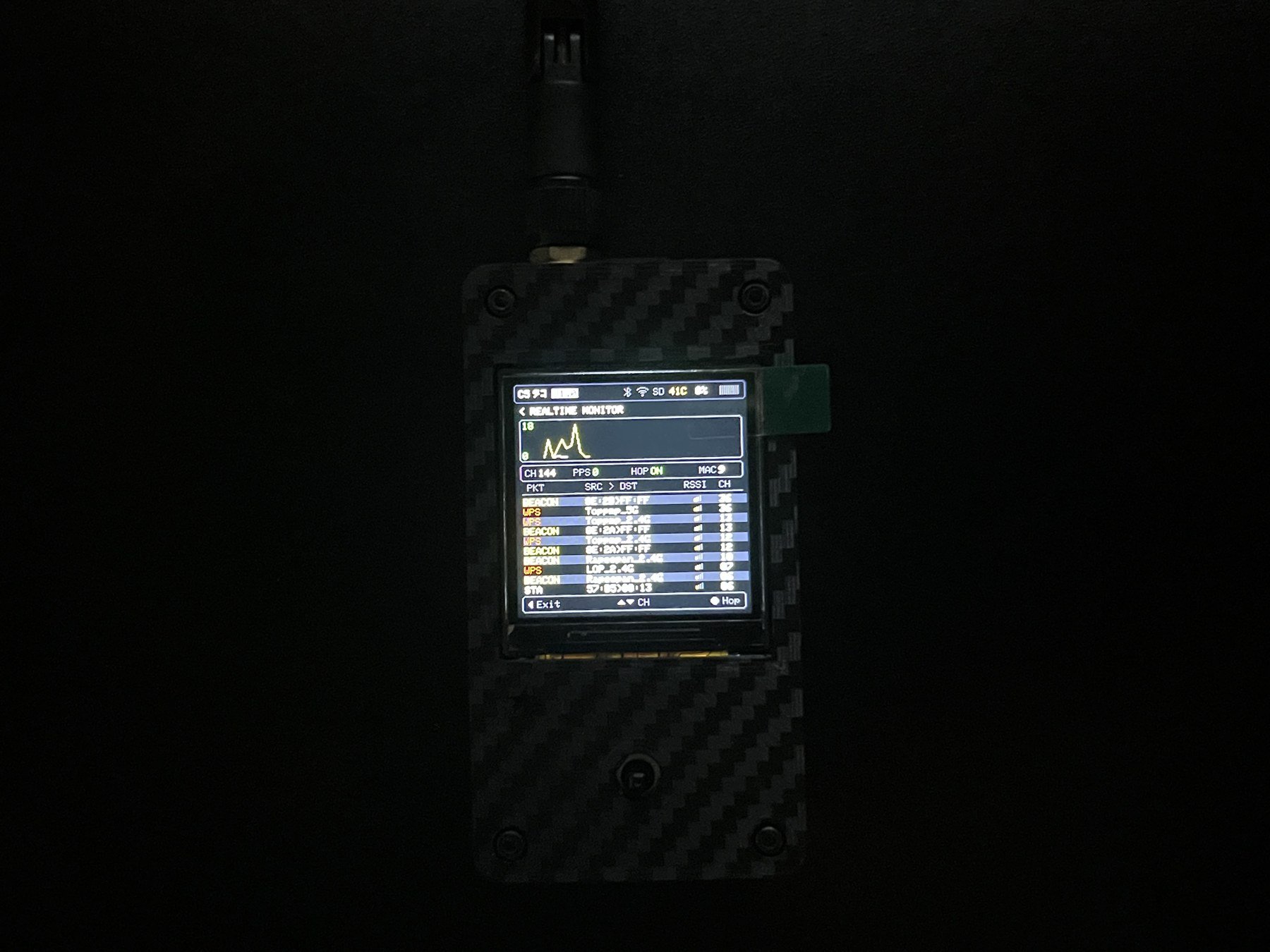
💾 Save a PCAP step by step
1
Check free space
Open
FILES → File Explorer. For extended recording, insert a supported microSD card first.2
Start saving
Open
WIFI → SNIFFER → Packet Monitor → All + Save.3
Collect data
Let the device run only for the needed period. Do not capture data from networks without authorization.
4
Stop and check the file
Hold the center button for about one second, then open
FILES → File Explorer to check the created file.📍 Trackers and other detectors
Jammer Detectis an observation aid only; an alert does not always confirm a jammer.Find Hidden APlooks for APs with hidden names; results depend on packets observed at the time.WiFi Trackertracks APs.STA Trackertracks client devices.
Jammer Detect, Find Hidden AP, and tracker results can vary by location and observation time.