
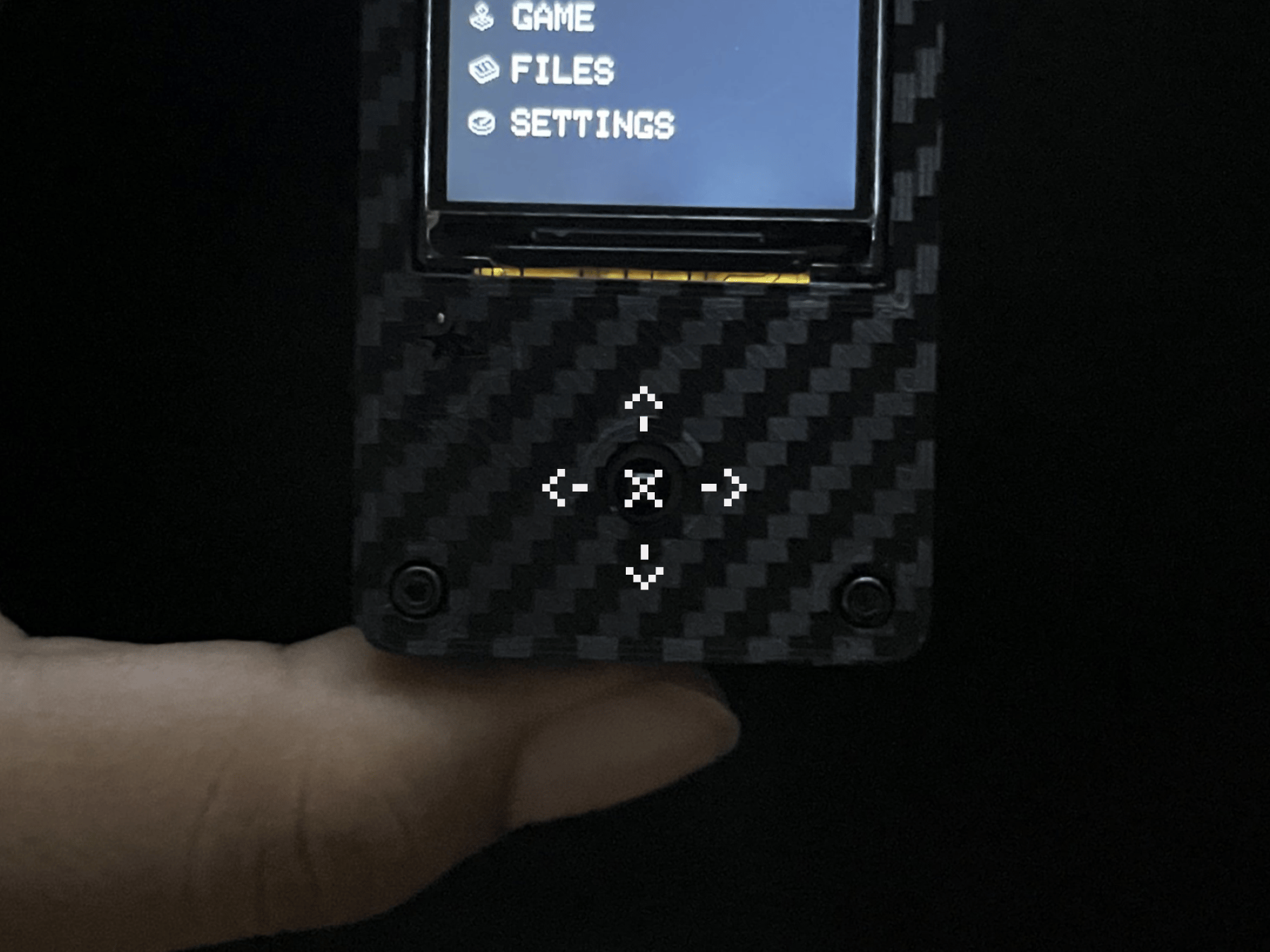
C5TAKO™ uses one five-way button. Use it to select menus, go back, and stop an active feature.
📷 Image to add: A top view of the real control with UP, DOWN, LEFT, RIGHT arrows and the center-button position circled.

Directional controls

Some screens use controls differently, such as left/right to change a value. Follow the hint at the bottom of the screen first.

Read a menu path

An arrow means “choose the next menu,” for example:
  1. Move to SETTINGS, then press right or the center button.
  2. Select Display UI.
  3. Select Theme.
You do not need to memorize paths: keep the guide open and follow each name from left to right.

Stop an active feature

  1. Hold the center button for about one second.
  2. Release it when the screen stops or returns to a menu.
  3. If the device still does not respond, turn its switch off, wait about five seconds, then turn it back on.
Use this procedure for scan, signal-inspection, and game screens unless an on-screen hint specifies another method.
🎬 Media to add: “Move through menus → open WIFI → go back with left → stop an active screen by holding center.”

If a list scrolls too quickly

Holding a directional button scrolls continuously. To move one item at a time, tap and release it. Next: Recommended settings.